If you've ever opened a BPMN diagram and felt lost trying to figure out what each symbol, event, gateway, or activity code actually means, you're not alone. Business Process Model and Notation diagrams are powerful tools for mapping workflows, but the notation system can feel like a foreign language at first. Learning how to read BPMN event gateway and activity codes in workflow mapping is a skill that directly impacts how well you communicate processes with your team, identify bottlenecks, and build automation logic that actually works.
This guide breaks down each element events, gateways, and activity codes so you can walk away confident in reading any BPMN diagram you encounter.
What Does BPMN Stand for and Why Does the Notation Matter?
BPMN stands for Business Process Model and Notation. It's a standardized graphical notation maintained by the Object Management Group (OMG) that lets teams represent business processes in a visual diagram. The standard uses specific shapes, symbols, and codes so that anyone trained in BPMN can read a diagram regardless of the company or industry.
The notation matters because without a shared visual language, process documentation becomes inconsistent. One team might use rectangles for everything while another uses flowcharts with no standard meaning. BPMN solves that problem by assigning specific meanings to specific shapes. If you want a broader refresher on the symbols used across BPMN diagrams, our BPMN notation symbols guide covers the full visual vocabulary.
How Do You Read BPMN Events?
Events in BPMN are represented by circles (ovals). They indicate something that happens during a process a trigger, a result, or a catch point. The type of event is identified by its border and the icon inside the circle.
Start Events
A start event has a thin single border with an icon inside. This is where the process begins. The icon tells you what triggers the process:
- Empty circle The process starts by a default trigger (manual start).
- Envelope icon A message triggers the process.
- Clock icon A timer triggers the process (scheduled start).
- Lightning bolt A signal triggers the process.
- Circle with a line A conditional trigger starts the process when a condition becomes true.
Intermediate Events
An intermediate event has a thin double border. It sits on the flow path or attached to an activity boundary. Intermediate events represent something that happens between the start and end of a process.
- Envelope with double border Waits for a message mid-process.
- Timer with double border A delay or wait period in the workflow.
- Lightning bolt with double border A signal is sent or received during the process.
When an intermediate event is attached to the boundary of an activity (a task or subprocess), it's called a boundary event. This means: "If this event occurs while the activity is running, do something different." For example, a timer boundary event might cancel a task if it takes too long.
End Events
An end event has a thick single border with an icon inside. It marks where the process (or a path within the process) terminates.
- Empty thick circle Standard process end.
- Envelope with thick border A message is sent when the process ends.
- Multiple thick circle Indicates multiple possible end results (terminate).
The border thickness is your quickest way to tell the three event types apart. Thin single = start. Thin double = intermediate. Thick single = end.
How Do You Read BPMN Gateways?
Gateways are diamond shapes. They control the flow of the process they decide where the path goes next based on conditions, events, or parallel execution rules.
Exclusive Gateway (XOR)
This gateway has an "X" inside (or is sometimes shown as an empty diamond). It means: only one path out of the gateway is taken. The process evaluates conditions and follows exactly one branch. Think of it like an "if/else" statement in code.
Example: A loan approval process hits an exclusive gateway. If the applicant's credit score is above 700, the process goes to "Approve." Otherwise, it goes to "Review Manually." Only one path is taken.
Inclusive Gateway (OR)
This gateway has a circle inside the diamond. It means: one or more paths can be taken based on conditions. Multiple outgoing branches can activate simultaneously if their conditions are met.
Example: After an order is placed, an inclusive gateway might send a notification email and update inventory and alert the warehouse all paths triggered if their respective conditions are true.
Parallel Gateway (AND)
This gateway has a "+" (plus sign) inside. It means: all paths are taken simultaneously. No conditions are evaluated. The process splits into parallel execution and then converges at a matching parallel gateway later.
Event-Based Gateway
This gateway has a pentagon or diamond with an event symbol. Instead of evaluating a condition, it waits for one of several possible events to occur. The path taken depends on which event happens first.
Example: After sending a payment request, the gateway waits. If a confirmation message arrives, it continues. If a timer expires with no response, it triggers a follow-up. Whichever event occurs first determines the path.
Complex Gateway
Marked with an asterisk () inside the diamond, this handles advanced synchronization rules that don't fit the other types. It's rarely used in simple workflow mapping and typically appears in more sophisticated process logic.
What Are Activity Codes in BPMN?
Activities in BPMN are represented by rounded rectangles. They describe the work being done in a process tasks and subprocesses.
Task Types
A task is an atomic unit of work. The icon in the top-left corner of the rounded rectangle indicates the task type:
- No icon A manual task performed by a person without system assistance.
- User icon (person) A user task that requires human interaction through a system interface.
- Wrench/gear icon A service task executed by an automated system or web service.
- Envelope icon A send task that sends a message to an external participant.
- Reverse envelope A receive task that waits for a message.
- Script icon A script task executed by a business rule engine or script.
- Business rule icon (table) A business rule task that evaluates predefined rules.
Subprocesses
A subprocess looks like a task but has a small "+" icon at the bottom center. It represents a group of tasks collapsed into a single shape. You can expand it to see the detailed workflow inside. Subprocesses help keep top-level diagrams clean and readable.
A subprocess with a dashed border and a loop icon indicates a multi-instance subprocess the same set of activities runs multiple times, often once for each item in a collection (like processing each line item in an order).
Loop and Multi-Instance Markers
Activities can also carry markers at the bottom:
- Loop icon (circular arrow) The task repeats until a condition is met.
- Three vertical lines Parallel multi-instance. The task executes multiple times in parallel.
- Three horizontal lines Sequential multi-instance. The task executes multiple times one after another.
These markers change how the activity behaves in the workflow, so always check for them.
What Do the Different Connecting Lines Mean?
Reading events, gateways, and activities also requires understanding the lines that connect them:
- Solid arrow Sequence flow. Shows the order of activities.
- Dashed arrow Message flow. Shows communication between different pools/lanes (different participants).
- Dotted line with no arrowhead Association. Links an artifact (like a text annotation or data object) to an activity.
If you want to understand how these elements work together in a full collaborative diagram, our article on BPMN 2.0 collaboration diagram best practices walks through multi-participant scenarios.
Where Do People Typically Get Stuck Reading BPMN Diagrams?
Here are common mistakes and confusion points:
- Confusing exclusive and parallel gateways The "X" means pick one; the "+" means do all. Mixing them up fundamentally changes process logic.
- Ignoring boundary events A small circle attached to a task boundary is easy to miss, but it changes how that task behaves under certain conditions.
- Not distinguishing start vs. end vs. intermediate events The border thickness is the key. Memorize: thin single = start, thin double = intermediate, thick single = end.
- Overlooking task type icons A service task and a user task represent very different execution contexts. The small icon in the top-left corner matters.
- Skipping the swimlane labels Pools and lanes tell you who is responsible for each activity. Ignoring them leads to misunderstanding handoffs.
How Can You Practice Reading BPMN Diagrams?
The best way to get comfortable is to work through real examples. Start with simple workflows you already know like an employee leave request or a customer support ticket process and try to map them using BPMN symbols. Then look at how others have modeled the same type of process.
For a developer-focused walkthrough with concrete process examples, check out our BPMN process diagram example for software developers.
You can also use free BPMN modeling tools like Camunda Modeler or bpmn.io to build and test your own diagrams. Reading diagrams is easier when you've built a few yourself.
Quick Reference Checklist for Reading BPMN Diagrams
- Start reading at the start event Follow the sequence flow from left to right or top to bottom.
- Check event borders first Thin single = start, thin double = intermediate, thick single = end.
- Look at icons inside events They tell you the trigger (message, timer, signal, condition).
- Identify gateway shapes X = one path, + = all paths, circle = one or more, event-based = depends on which event occurs.
- Read task type icons The top-left corner icon tells you if it's manual, automated, a message, or a script.
- Look for subprocess markers A "+" means there's a detailed process hidden inside.
- Check for loop and multi-instance markers These change whether a task repeats or runs in parallel/sequence.
- Read swimlane labels Pools and lanes tell you who owns each part of the process.
- Follow the correct line type Solid = sequence flow, dashed = message flow between participants.
- Don't skip boundary events Small circles on activity edges change task behavior under specific conditions.
Print this checklist or keep it open while you practice reading diagrams. Within a few sessions, the symbols will start to feel intuitive rather than confusing. The more diagrams you read and build, the faster you'll recognize patterns and process logic at a glance.
 Bpmn Notation Reference Sheet for Enterprise Architecture Teams
 Bpmn 2.0 Collaboration Diagram Best Practices for Business Analysts
 Bpmn Process Diagram Examples for Software Developers
 Bpmn Notation Symbols: Complete Guide to Meanings and Usage
 Flowchart Codes for Business Process Mapping: a Complete Guide
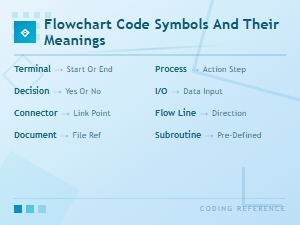 Flowchart Code Symbols and Their Meanings: a Complete Visual Guide